Offline & USB Licensing
This guide walks a software vendor through every phase of licensing an air-gapped machine — from minting the first bundle in the admin portal, through physical USB handoff, to daily operation, in-place updates, and auditing.
Overview
Offline licensing lets you sell your software into environments where the end-user's machine has no internet — factory floors, hospital networks, military sites, research labs, remote installations. A customer receives a USB stick carrying a signed license bundle; the application reads that bundle, validates it locally, and runs for the window you authorised. No phone-home. No network dependency. Full enforcement and audit are preserved.
The flow has three physical artefacts and three portal actions:
- Outbound USB (
.sglic) — a signed license bundle you generate in the portal and physically deliver to the customer. - Optional update USB (
.sgupd) — a standalone app-binary bundle you can ship between license exports when only the software has changed. - Return USB (
.sgsync) — a signed telemetry journal the customer exports from their offline machine and sends back.
Every one of the three is cryptographically sealed; edited files are refused on either side.
When to use it (and when not to)
Good fits. Factory/plant-floor machines, hospital imaging rooms, military/government systems, lab instruments, offshore rigs, secured research networks, retail branches with unreliable links, ATM-style devices, any customer whose IT policy forbids outbound traffic to a licensing server.
Poor fits. Consumer desktops with reliable internet — the online flow is simpler for both sides. A mixed fleet? Use online by default and generate an offline bundle only for the machines that need it; the two modes coexist on the same license.
Prerequisites
- You are on a Professional or Enterprise plan (offline is disabled on Starter).
- Your tenant has the Offline feature flag enabled. If you can see the “Offline” tab on the Licenses page, you're set. If not, contact support.
- The license you want to take offline already exists in the portal. Issue it as you normally would — you don't need to do anything special at issue time.
- The customer's offline machine has the SDK-wired version of your application installed. If it's a new install, see Step 3.
- A clean USB stick (FAT32 or exFAT recommended). Size doesn't matter — a license bundle is typically under 1 KB; an embedded app binary pushes that to 20–100 MB.
Step 1 · Generate
Find the license
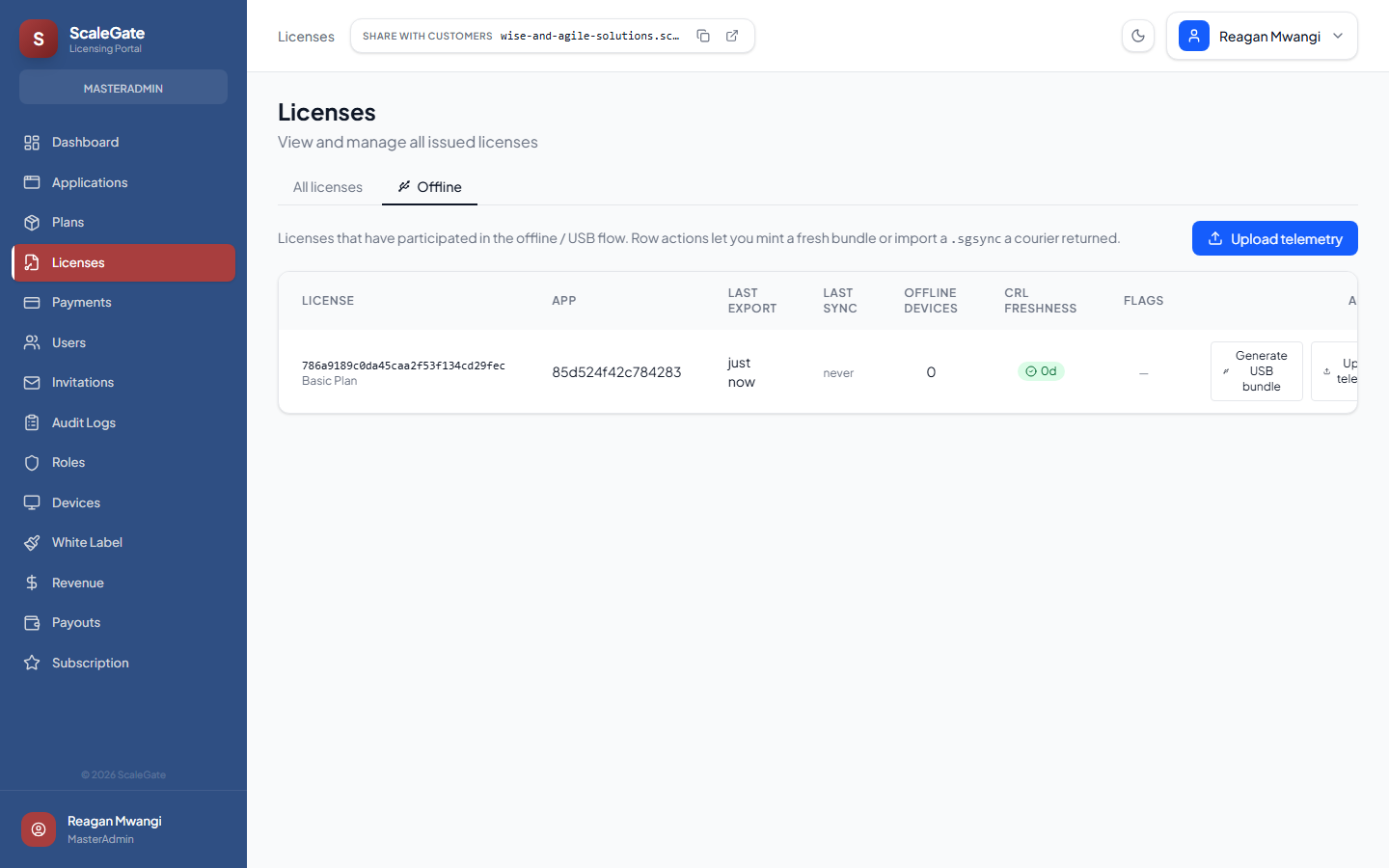
Log in to your admin portal and go to Licenses. Click the Offline tab.
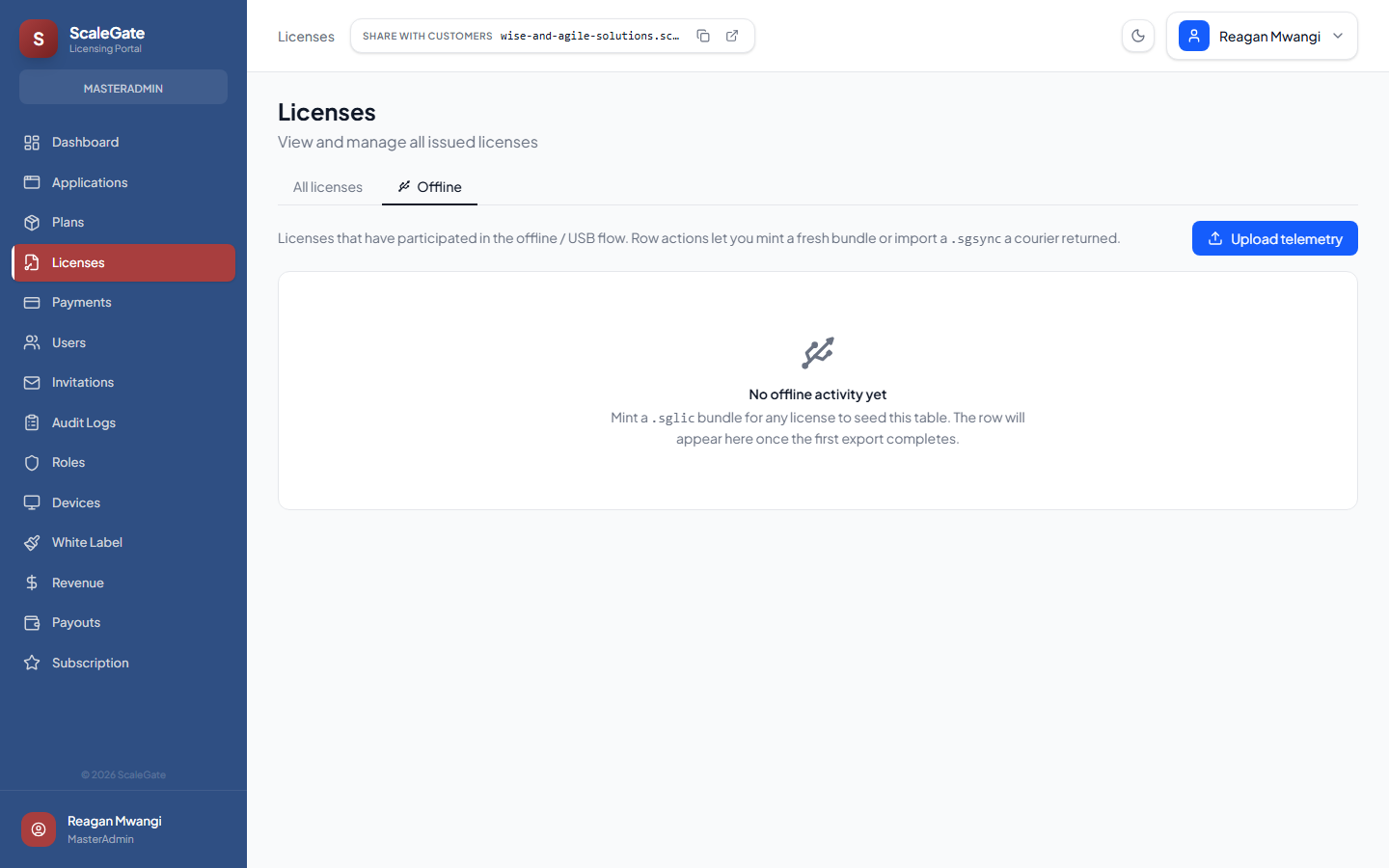
The first time, the table is empty. Switch to All licenses, pick the one you want to take offline, and return to the Offline tab — after the first export, the license appears here with its offline status.
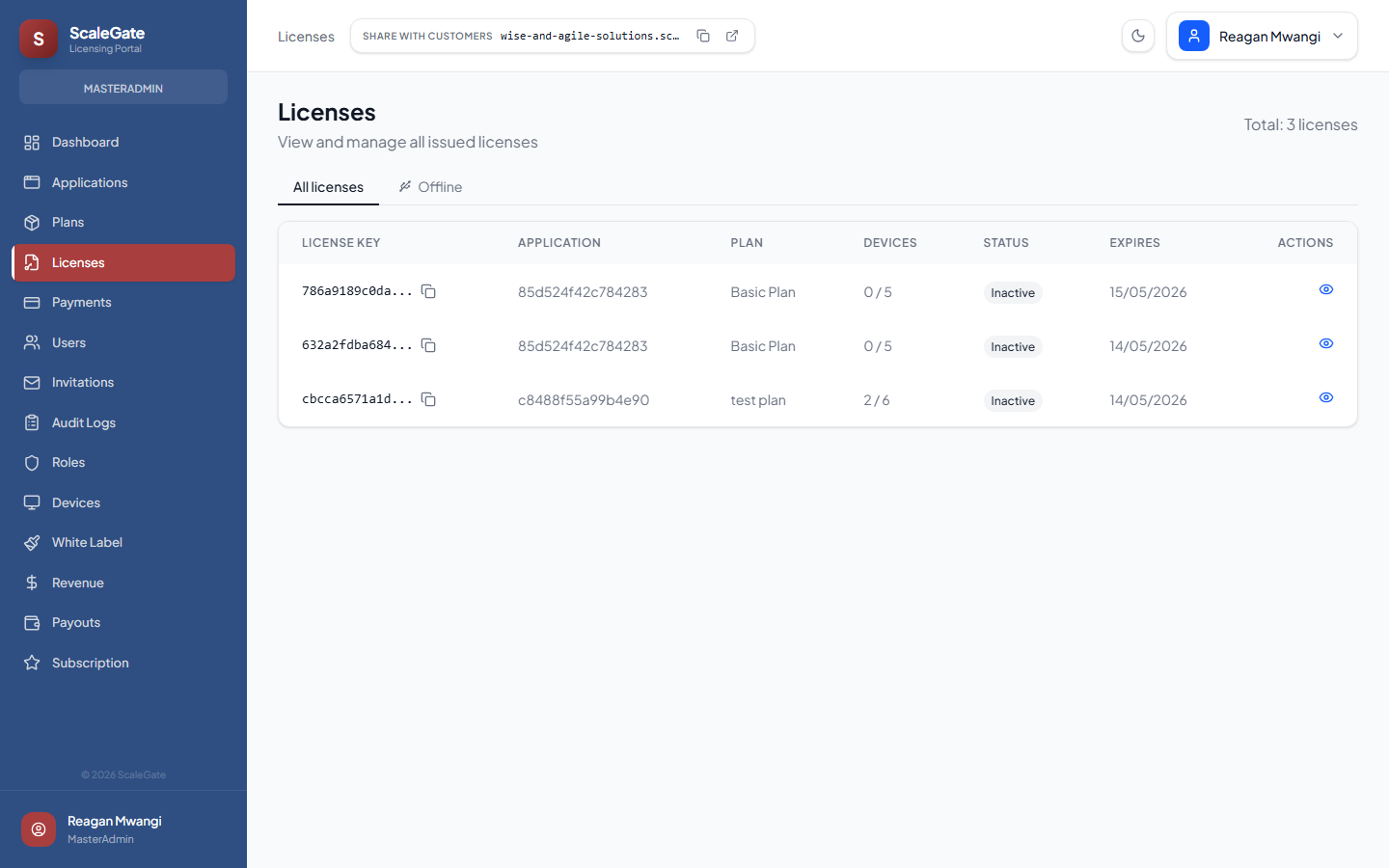
Open the Generate USB bundle wizard
Click Generate USB bundle on the row. A three-step slide-in wizard opens.
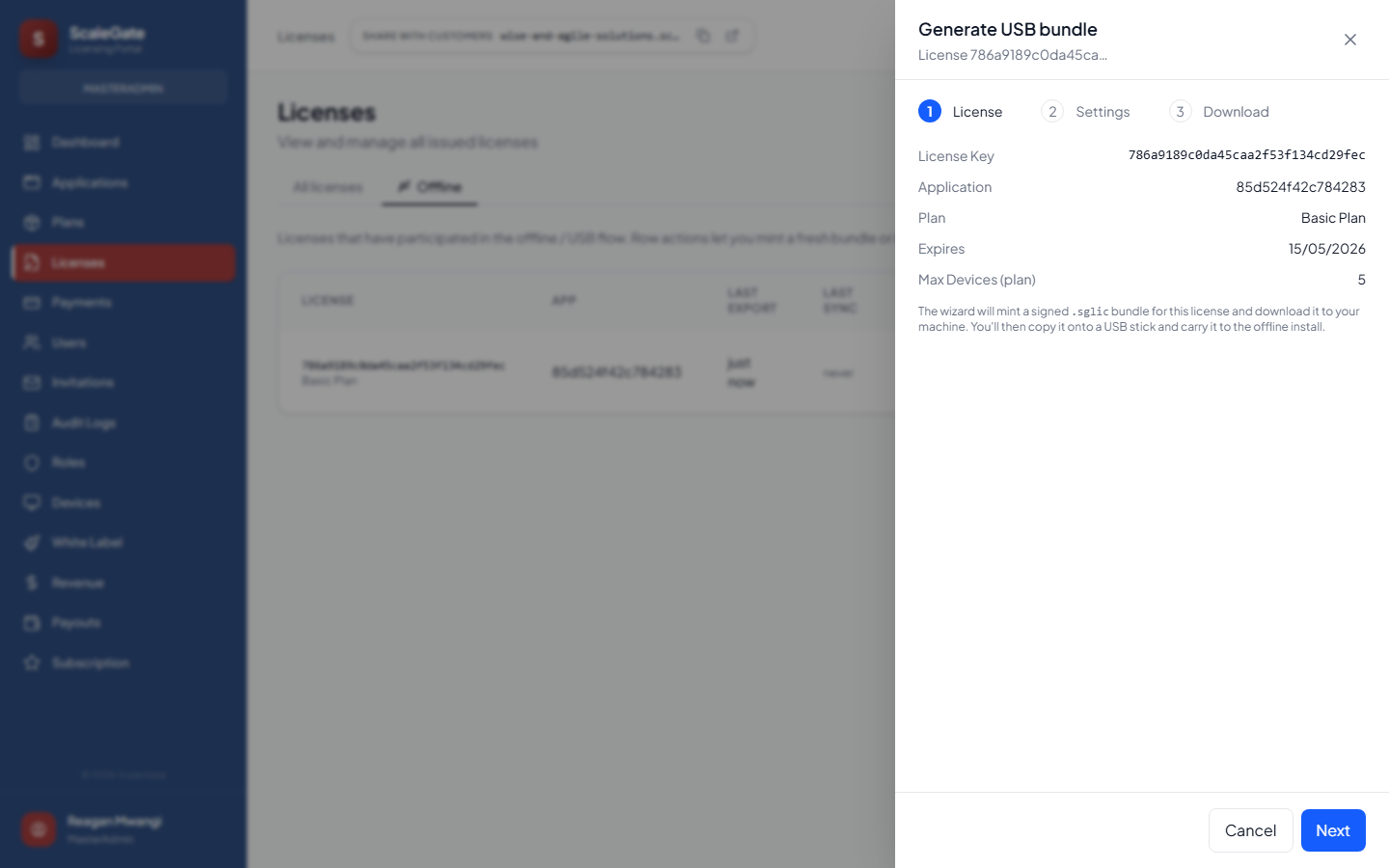
Configure the bundle
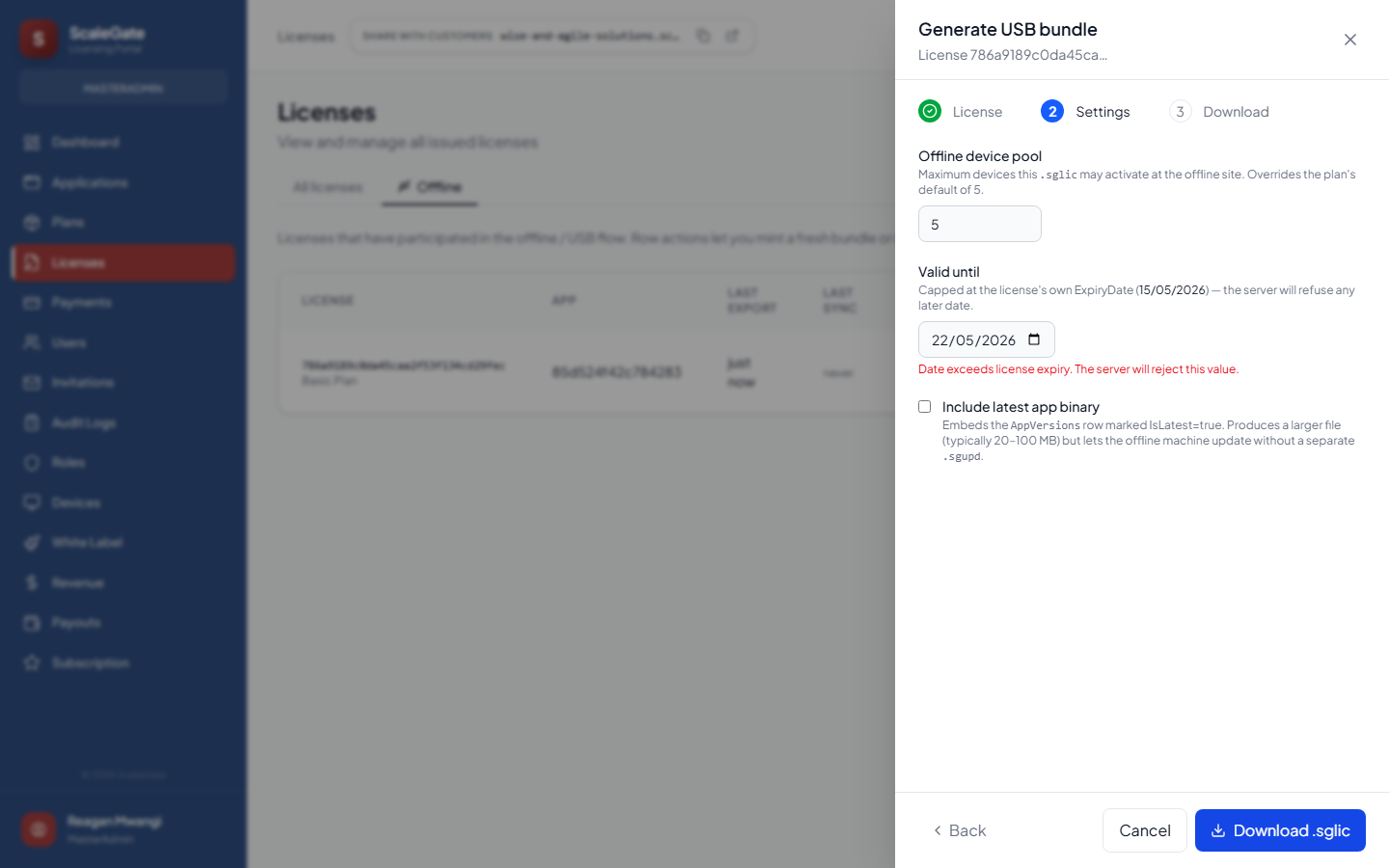
- Offline device pool. How many devices this single USB may activate at the customer site. Must be between 1 and the plan's MaxDevices; use a smaller value if you're carving out a sub-quota for a single site.
- Valid until. The hard expiry built into the bundle. If you type a date past the license's own expiry, the wizard warns you and the server refuses the export — a bundle can never outlive the license it came from.
- Include latest app binary. Check this to embed the current installer inside the
.sglic. The customer machine can then install the app straight from the same USB — no prior install required. File size jumps to whatever the binary weighs (typically 20–100 MB).
Download the file
Click Download .sglic. Your browser saves a file named like license-786a9189.sglic. This is the signed bundle. You'll now see a row appear in the Offline tab with Last export = just now.
Step 2 · Prepare
What the customer sees depends on whether you sent them one file or many. The simplest layout:
USB_ROOT/
  license-786a9189.sglic      ← the bundle you just downloaded
  README.txt                  ← your own instructions (optional)
If you embedded the app binary, the installer is inside the .sglic — the customer doesn't see it as a separate file. The application extracts it on first run.
Step 3 · Install
If the app is already installed
- Insert the USB into the customer's machine.
- Launch the application. On first run after USB insertion, it detects the
.sglicand presents an activation dialog. - Confirm the expiry and device count shown. If they match what was agreed, click Activate.
- The USB can be removed once activation succeeds — the bundle is now recorded on the machine's local state store. The USB is only needed again for refresh/update.
If it's a fresh install (embedded binary)
- Insert the USB.
- The customer's IT opens the
.sglicwith your setup utility (or double-clicks if you wired the file extension association). - The utility extracts the embedded installer, runs it, and activates the license in one step.
- Remove the USB and store it somewhere safe — it's still the only way to refresh or extend the license later.
Step 4 · Operate
What happens on every launch
When the application starts, the SDK:
- Reads its local state. Last-known bundle, last-seen time, device fingerprint, journal of recent events.
- Validates the signature. If the on-disk bundle has been modified, the app refuses to run.
- Checks time. If the system clock has been set backwards since the last launch, the app refuses to validate — clock rollback attacks are detected here.
- Checks the expiry window. Refuses to run past the bundle's
ValidUntil, regardless of clock. - Checks device allowance. If this machine's fingerprint isn't in the bundle's device list, and the pool is full, activation is rejected.
- Checks the revocation list. If this license key appears on the CRL baked into the bundle, the app refuses to validate even if everything else matches.
- Appends to the journal. Activation, validation, startup, and expiry checks are all recorded in an encrypted local file — the telemetry outbox.
Degraded states the user sees
- Approaching expiry. With < 7 days left the app shows a banner asking the customer to request a new USB bundle. Adjustable in the SDK config.
- CRL is getting stale. If the bundle's embedded revocation list is older than 14 days, the SDK degrades validation to “needs refresh” — a new bundle is required soon even if the expiry hasn't hit yet. This prevents an indefinitely-held bundle from missing a key compromise.
- Hard expiry. Past
ValidUntilthe app stops validating. The UX is up to you: lock to a read-only mode, hard-exit, or show a “renew via USB” dialog.
Step 5 · Update
You have two ways to push an updated application binary to an offline machine, depending on whether the license is also being refreshed.
Option A — Bundle the update with a license refresh (.sglic)
When a license expires (monthly, quarterly, whatever cadence you chose), you're already going to issue a fresh .sglic. In Step 2 of the wizard, tick Include latest app binary. The refreshed bundle carries the new license and the new installer. The customer inserts the USB, the SDK detects the newer binary, prompts to install, and continues. One USB, two jobs done.
Option B — Ship a binary-only drop (.sgupd)
When you need to push a patch between license refreshes — a critical bug-fix, a new feature, a security hotfix — the license is still valid and doesn't need re-issuing. Use the Export Update action (also on the Offline tab row, or in the Applications page) to mint a standalone .sgupd. This file contains only the app binary, signed by the same trust chain as .sglic. The customer drops the USB in; the SDK extracts, verifies, installs the new binary, and resumes with the existing license.
| When to use | File | Contains |
|---|---|---|
| Scheduled licence refresh | .sglic |
License + device pool + CRL + optional app binary |
| Patch between refreshes | .sgupd |
App binary only (signed) |
| Returning telemetry to you | .sgsync |
Signed events journal from the offline machine |
.sgupd is additive. If the new binary fails to install or crashes on launch, the SDK keeps the prior one in place. No brick.
Step 6 · Collect
A license bundle going out is only half the job. To keep the audit trail intact and catch over-activation, the customer periodically exports a return journal and sends it back. This is the telemetry outbox signed as a .sgsync file.
What the customer does
- Insert a return USB into the offline machine.
- From the application's Help → Export licence journal menu (or the CLI command your install docs document), save
journal-YYYYMMDD.sgsyncto the USB. - Hand the USB to the courier / admin / mail run.
What it contains
- Every activation, validation, startup, and renewal event since the last collection.
- Device fingerprints and their first-seen / last-seen timestamps.
- The device's own signing public key (registered the first time it syncs; re-used thereafter).
- The outbox's own signature, produced by the device's private key — the customer cannot hand-edit this file to conceal over-use.
Step 7 · Reconcile
Back in the portal, on the Licenses → Offline tab, click Upload telemetry in the top-right.
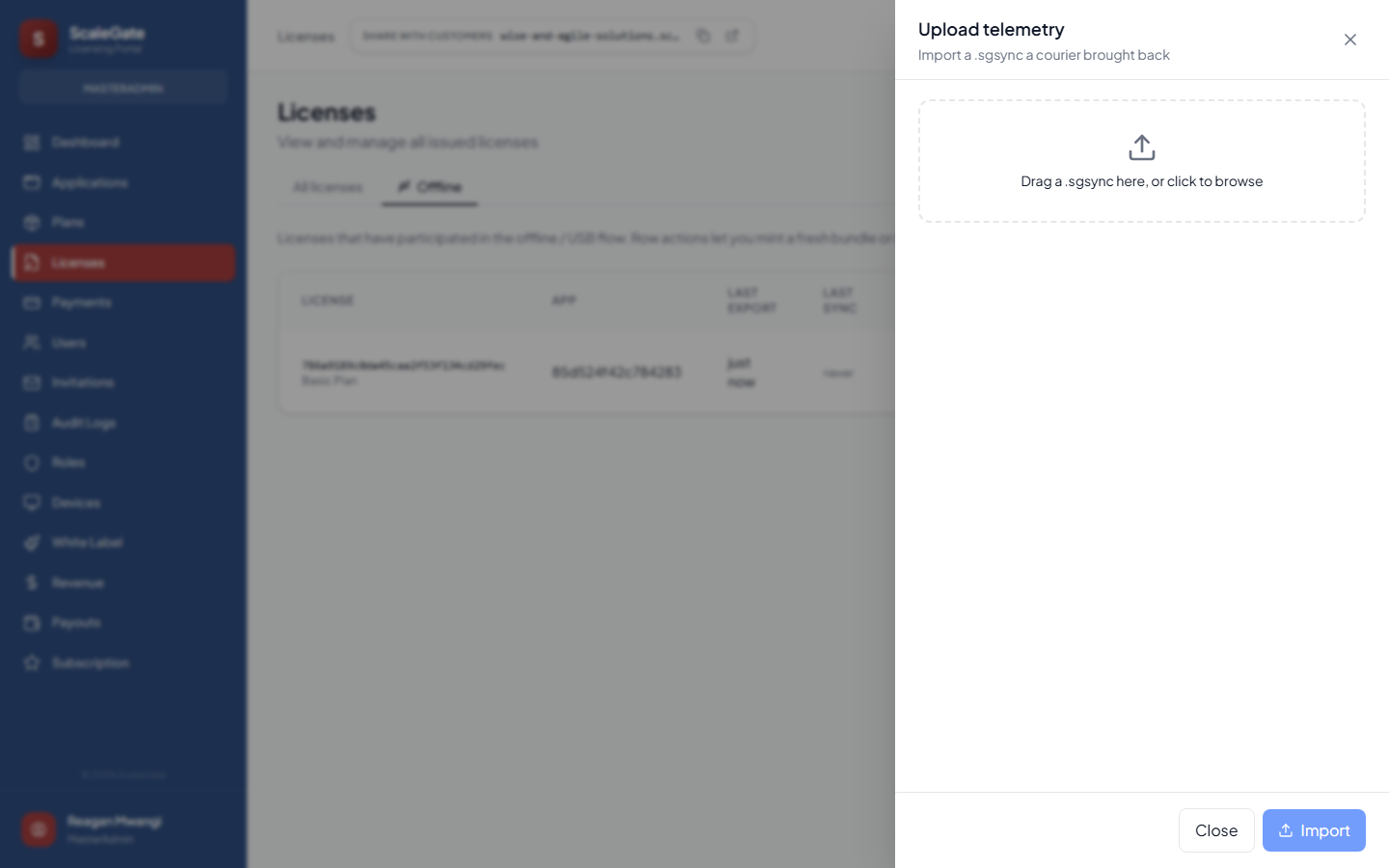
Drag the .sgsync onto the drop zone, or click to browse. The server verifies the signature, deduplicates events against what it's already seen, and produces a reconcile report.
The reconcile report
- Accepted — new events imported this round.
- Duplicates — events already in the database (harmless; just means the customer is sending overlapping files).
- Rejected — events rejected, usually because their timestamp is more than 1 hour in the future (forged or catastrophically clock-skewed).
- Devices created / updated — new fingerprints recorded in the device registry.
- Over-activation — the one to watch. If a 5-device pool saw 7 activations, this is flagged and the license row in the Offline tab gets an amber warning badge.
- Check the audit log (see next section) for the specific device fingerprints.
- Reach out to the customer for confirmation — legitimate growth or policy violation?
- If it's abuse: revoke the license key and/or re-issue a bundle with Reset device counter from the Offline tab's row menu (forces a clean re-anchor) and negotiate a larger pool.
File types at a glance
| Extension | Direction | Size | Purpose |
|---|---|---|---|
.sglic |
Vendor → Customer | < 1 KB, or 20–100 MB with embedded binary | License + device pool + CRL |
.sgupd |
Vendor → Customer | 20–100 MB | App binary only |
.sgsync |
Customer → Vendor | Typically < 100 KB, cap 16 MB | Signed events journal |
Audit & flags
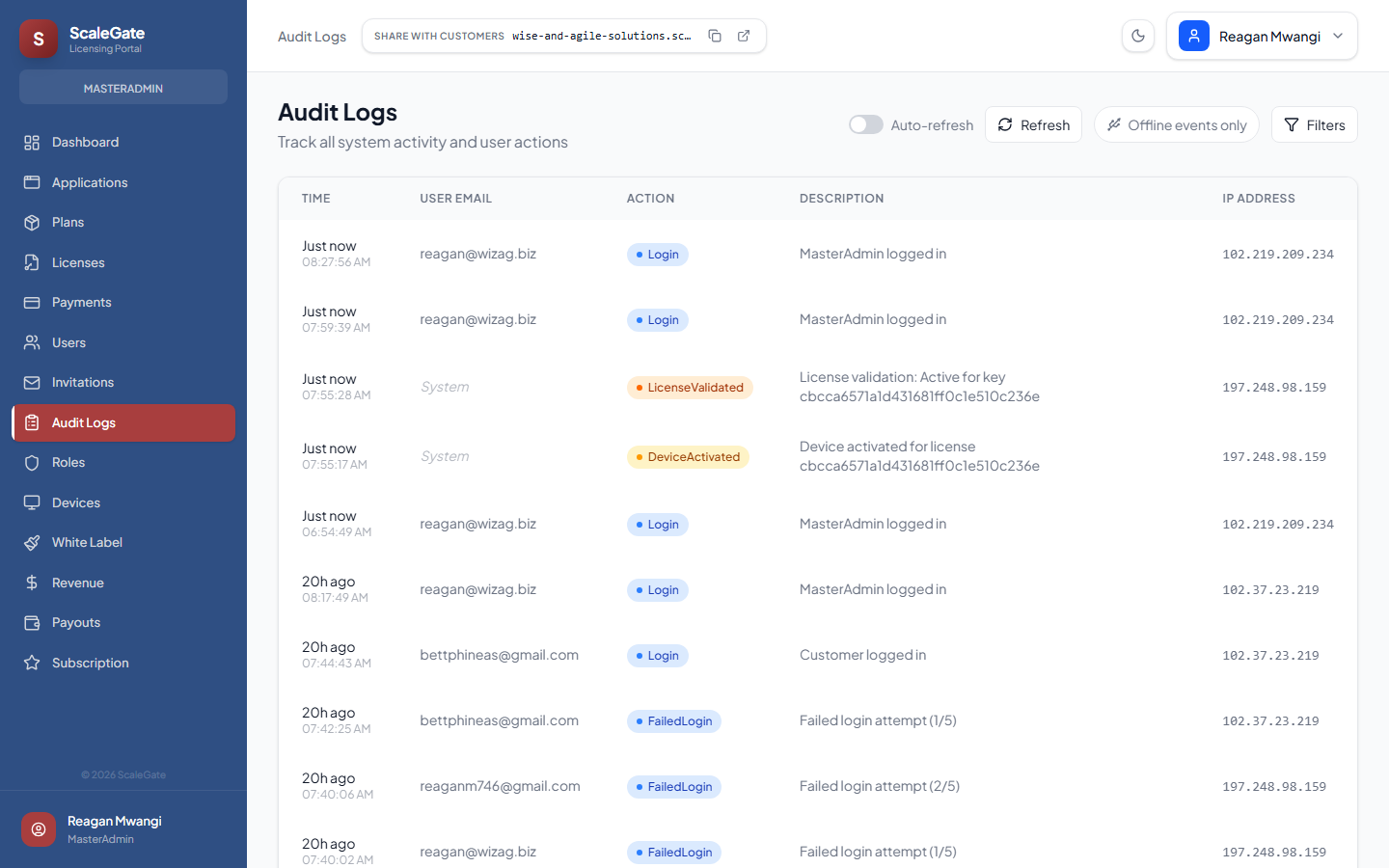
Every offline action surfaces in the same audit log as the rest of your tenant, with three dedicated actions:
OfflineBundleExported— a.sglicor.sgupdwas minted.OfflineSyncImported— a.sgsyncwas successfully reconciled.OfflineOverActivation— the reconcile found a device that activated past the bundle's cap.
Troubleshooting
“Date exceeds license expiry” when generating
You asked for a ValidUntil later than the license's own ExpiryDate. Fix: pick a date on or before the license expiry, or renew the license first and retry.
“No valid offline bundle” on the customer machine
One of:
- The
.sglicfile was moved out of the path the SDK searches (by default: next to the executable, or a configured directory). - The file was modified in transit (AV scanning rewriting contents, corrupted upload, etc.). Re-generate and re-send.
- The bundle expired. Re-generate with a new window.
- The tenant's signing-key set in the SDK doesn't include your trust anchor. Check the SDK config with site IT.
Reconcile shows “rejected” events
The events' OccurredAt is more than 1 hour in the future. Either the offline machine's clock is badly wrong, or someone forged the file. The event body is logged — check the customer's system clock first before suspecting foul play.
Import upload is refused
Three checks:
- File is exactly one
.sgsync, not a zip. - File is under 16 MB.
- Signature is intact — if the customer opened and re-saved the file in a text editor, the signature is broken and the server will reject it.
USB was lost in transit
Immediately revoke the original license key via the Licenses page (standard revoke flow — nothing offline-specific). Any future bundle you export will carry the revocation in its CRL; the lost USB will be blocked by the app itself on the next launch attempt at the destination. Then re-issue with a short window.
FAQ
Does turning on offline affect my existing online customers?
No. Offline is per-tenant and additive. Existing licenses continue to validate online exactly as before; offline is only activated for licenses you explicitly export.
Can one license be both online and offline simultaneously?
Yes. Issue the license normally; the online devices validate normally. If a subset of machines need to run air-gapped, generate a .sglic for those — the online device count and the offline device pool are tracked separately but enforced against the same plan cap.
How long should I make a bundle valid?
Short enough that a lost USB expires before it can be abused, long enough that the courier cadence isn't painful. 30 days is a good default for monthly site visits; 7–14 days for weekly shipments; 60–90 days for truly remote quarterly rotations.
What if the customer's clock is wildly wrong?
The SDK refuses to validate if clock appears to move backwards between runs. Forward clock-skew past the expiry window is also rejected. If the machine's BIOS clock drifts, the customer must re-anchor via a fresh bundle.
Can a customer share a bundle across sites?
Technically yes, practically no. The device pool is capped per bundle — activation #(N+1) is rejected by the app. If they try to install the same bundle at two sites, the first N machines work and everything else fails. And you see it on the next .sgsync as over-activation.
Is there a CLI for scripted integration?
Yes, scalegate-offline is a dotnet global tool that wraps the same operations (export, verify, collect-telemetry, import-sync, wizard). Use it for automated site rollouts and CI-driven bundle generation. See the Developer Docs for installation.
What happens if I suspend a tenant while they have offline bundles in the field?
The bundles continue working until their baked-in expiry — they are signed artefacts and cannot be remote-killed without a delivery mechanism. That's why short windows matter. On the next license refresh you simply decline to issue one.
Can I use offline for API / web-only products?
Offline is built for applications that run on the customer's machine. A SaaS product that ships no desktop binary doesn't need it. A hybrid product (thick client + optional cloud) can keep the thick client licensed offline.
Is the flow compliant with audit requirements (SOC 2, ISO 27001)?
Every bundle export, every reconcile upload, and every over-activation event lands in the same audit log as the rest of your tenant — no blind spots. The tamper-proof signatures provide non-repudiation on both the outbound and the return leg. Compliance assessors have the same visibility they have for your online flow.
Ready to ship offline?
Sign in to the portal and mint your first bundle in under two minutes.
Open the Admin Portal